Answered
Trying to do Bevel Carve but don't get Profile cut

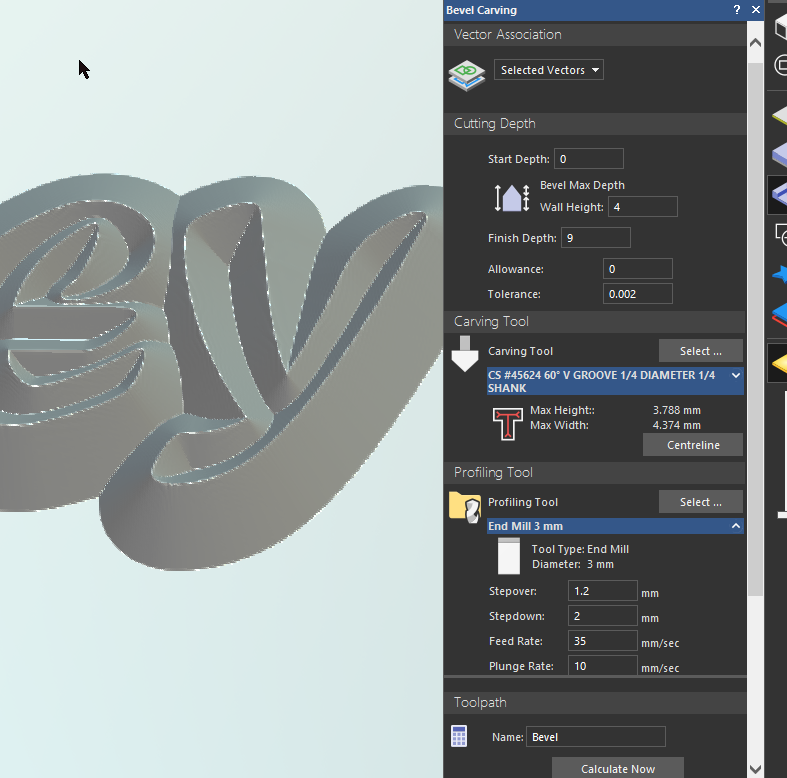
Hi, I have been trying to follow Leighton's tutorial on the Bevel Carve operation. I have setup a text item, put in the bevel height of 4mm I want then the finish depth which is 9mm. I have selected a 1/4" 60deg bit and a 3mm end mill profile bit then run the operation. All I get is a text with a wide bevel and no profile cut from the wall cut height to the finish depth height. I would like the text to stand up 5mm straight then a 4mm bevel on top. What do I seem to be doing wrong, see attached screen capture of my values entered. The white space shows a Z height of 0mm and the carve of the letters show -4.75mm
Thank You
Comments
Hi Carey Silk,
Please upload your Carveco Model file (*.art) using the free WeTransfer service and then share the generated link when replying here. We can then check your toolpath settings against Leighton Ashcroft's Bevel Carving demonstration video.
Thanks for your time and cooperation.
https://we.tl/t-bi76JX0oXW
Hi Carey Silk,
Many thanks for sharing your Bevel Carve Practice.art file by way of WeTransfer.
Your supplied Bevel Carve Practice.art file, together with the screenshot in your initial post within this topic, confirms that you've simulated the CS #45624 60° V GROOVE 1/4 DIAMETER 1/4 SHANK toolpath only, which explains why you do not see the result of the End Mill 3 mm toolpath in your toolpath simulation.
Please complete the following steps in your Bevel Carve Practice.art model:
Your toolpath simulation results in the 3D View should now look as shown below:
Thanks for your time and consideration.
Please sign in to leave a comment.