Answered
Rectangle with thicker line

Hi
If I want to mill down a rectangle shape, can I make it thicker when creating it?
Hi
If I want to mill down a rectangle shape, can I make it thicker when creating it?
Comments
Hi Roni Segoly,
For the benefit of others, please explain further what you mean by "make it thicker".
Perhaps you could share screenshots of your model and toolpath settings within Carveco Maker.
If you're creating a Profiling toolpath to machine around a rectangle vector, please watch the following demonstration video included in our Carveco Fundamentals training course: Profile
Thanks for your time and consideration.
My question was, when I create a rectangle I can add offset path and then use clearance tool to clear the space between the two vectors, but can I just make the line of the rectangle thicker when creating, so I do need to add another vector as offset?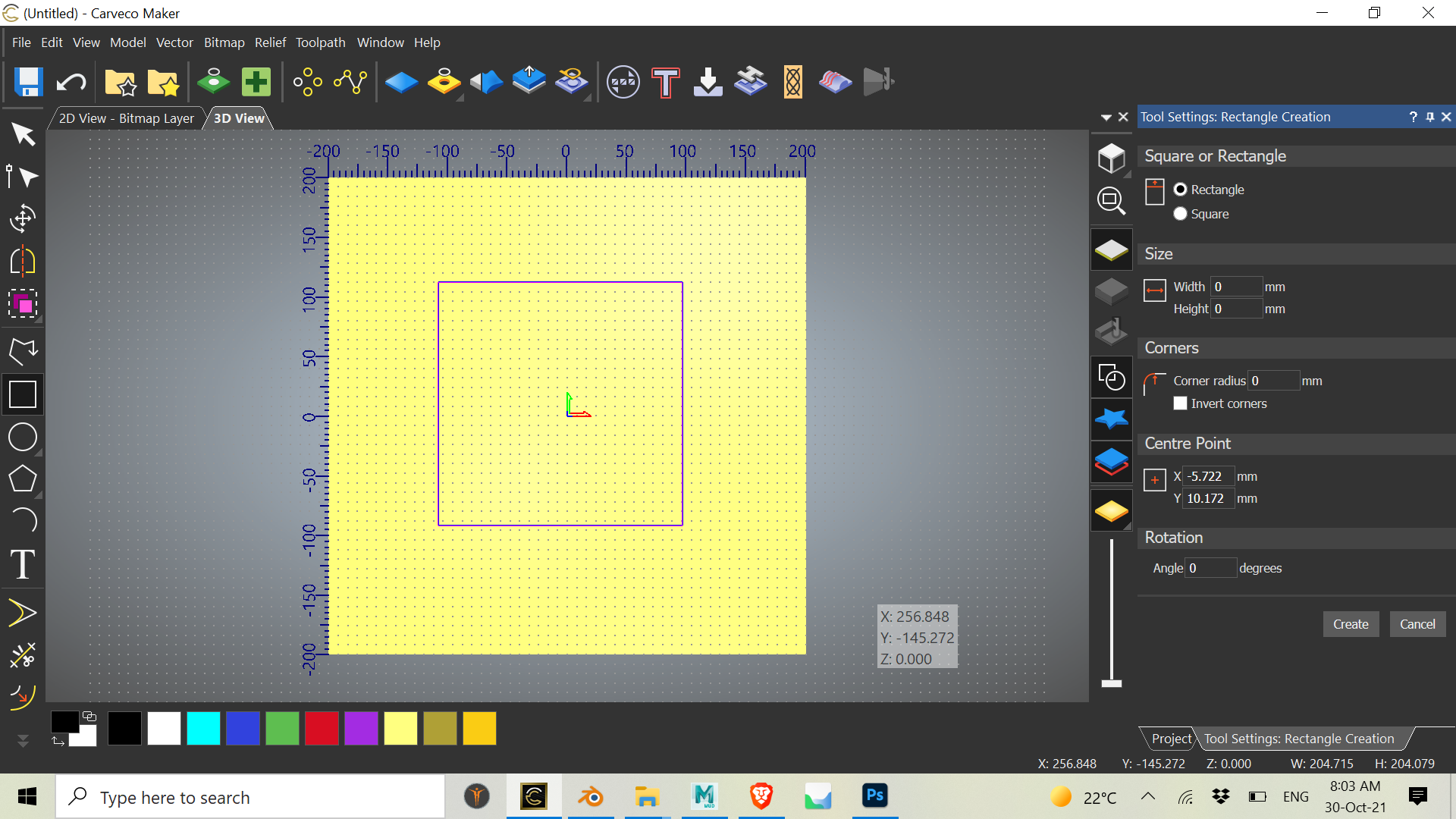
Hi Roni Segoly,
Please create an offset from your original rectangle (select the rectangle, then select the Vector > Offset menu option) to create a new rectangle, hold down the Shift key then click to select the original rectangle followed by the offset vector, and then create an Area Clearance toolpath between the two vectors.
While you can adjust the thickness of vectors shown in the view by selecting the Edit > Options menu option and specifying a Vector Thickness in the Options panel's Drawing Options settings, this is for visualization purposes only.
Thanks for your time and consideration.
Please sign in to leave a comment.