Answered
Batching Plaques with Maker

I was wondering if it's possible to batch plaques in Carveco Maker or do I have to upgrade to Maker + ?
Comments
Hi Kevin Comeau,
Please provide further details about what you're hoping to achieve with Carveco Maker, preferably using screenshots to illustrate.
You can use the Block and Rotate Copy tool to create a block copy of your vector designs and then calculate toolpaths based on them. Please watch the following demonstration video available from our Carveco Training portal: Block and Rotate Copy
Thanks for your time and cooperation.
Is there a more in-depth video which shows how to export vectors and tool paths then import them to create multiples (Batch) with Block and Rotate Copy on a new model. When I import model ,(Plaque I created with the trainng video), and Block Copy then simulate, It only simulates one of the plaques. The short video on Block and Rotate Copy does not go into detail on toolpaths nor importing or exporting.
Hi Kevin Comeau,
Please watch the demonstration specific to the type of toolpath you're creating in your model from the Carveco Training portal's Toolpaths & Machining category: https://learn.carveco.com
When creating a 2D toolpath, only the vectors which are selected at the time the toolpath is calculated are machined. To include more vectors in an existing toolpath, you must edit the toolpath accordingly.
Each of the areas of functionality you've mentioned in Carveco Maker also have a dedicated demonstration video, so please browse through the collection on the Carveco Training portal.
So that the community can better understand what it is that you're hoping to achieve in Carveco Maker, when posting, please ensure that you include screenshots of the results you have so far.
Thanks for your time and consideration.
I'm trying to batch and cut these plaques in Carveco Maker and from the videos you've suggested I'm assuming I can't do it in Maker and that I'll have to upgrade to Maker +.
Hi Kevin Comeau,
Please explain how you've formed the conclusion that you cannot complete the job in Carveco Maker.
You could create a single toolpath based on all of the vectors shown in your screenshot, and you would typically create a Profile toolpath to machine such a design. Alternatively, you can create two or more different toolpaths based on specific sets of vectors (for example, one for the plaque and another for the text) and provided each of the toolpaths make use of the same cutting tool/bit, you can save them together in a single toolpath output file.
Thanks for your time and consideration.
Let me start off by saying I am a beginner and have no experience with this except for what the training I took through this website. Starting off with the getting started video then part one and part two of creating a plaque with Leighton the instructor. I creating a plaque then machined and created a few more designs until I felt somewhat comfortable with the process. I then wanted to learn how to batch out multiples because I'm trying to start a business and I'm going to focus on my Acadian culture in making momentos for upcoming Acadian festivals and world conferences.
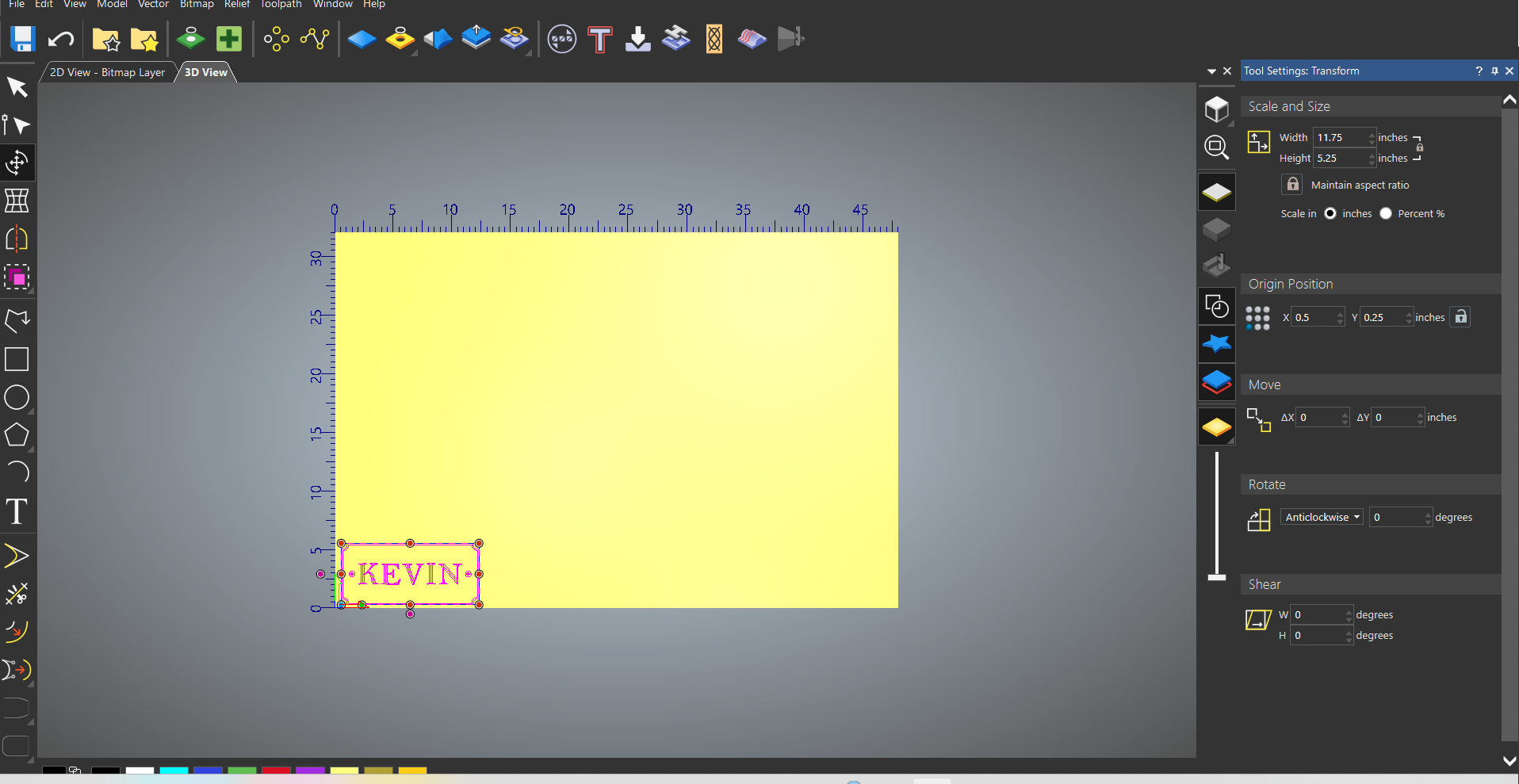
As you previously suggested I watched a very short video on Block and Rotate Copy. After some extensive trial and error I was able to get as far as what I screen shot but the simulation would only simulate one plaque. From what I've seen on the videos I have to save the tool paths as a template which from what I understand is only possible in Maker + . If there is another way to do it in Maker then I can not find. Again because this post is long I'll say it again. I'm a beginner with minimal experience.
Hi Kevin Comeau,
We've asked the question regarding how you've reached that conclusion with the view to possibly making the process more intuitive for you to follow. We respect that you're new to Carveco Maker that you're still finding your way.
You do not require a toolpath template to machine your design. At very least, you must create and calculate one toolpath based on all the vectors shown in your screenshot; your screenshot shows that you have not created and calculated toolpath yet.
You must then save your calculated toolpath from Carveco Maker choosing a post processor option which is compatible with your CNC machine and its controller. Please watch both of the following demonstration videos available from our Carveco Training portal:
They should give you some understanding of how you could move forwards with the vector artwork you've already created in your model.
You might want to consider sharing your Carveco Model file (.art) here by uploading it through the free WeTransfer service using its Get transfer link option, and then posting the generated link here as part of your reply. You don't need to create an account with WeTransfer to generate links to uploaded files.
If you confirm the manufacturer and model of your CNC machine and the controller you're using alongside it, we can suggest which specific post processor option to select when saving your toolpaths from Carveco Maker.
Thanks again for your time and consideration.
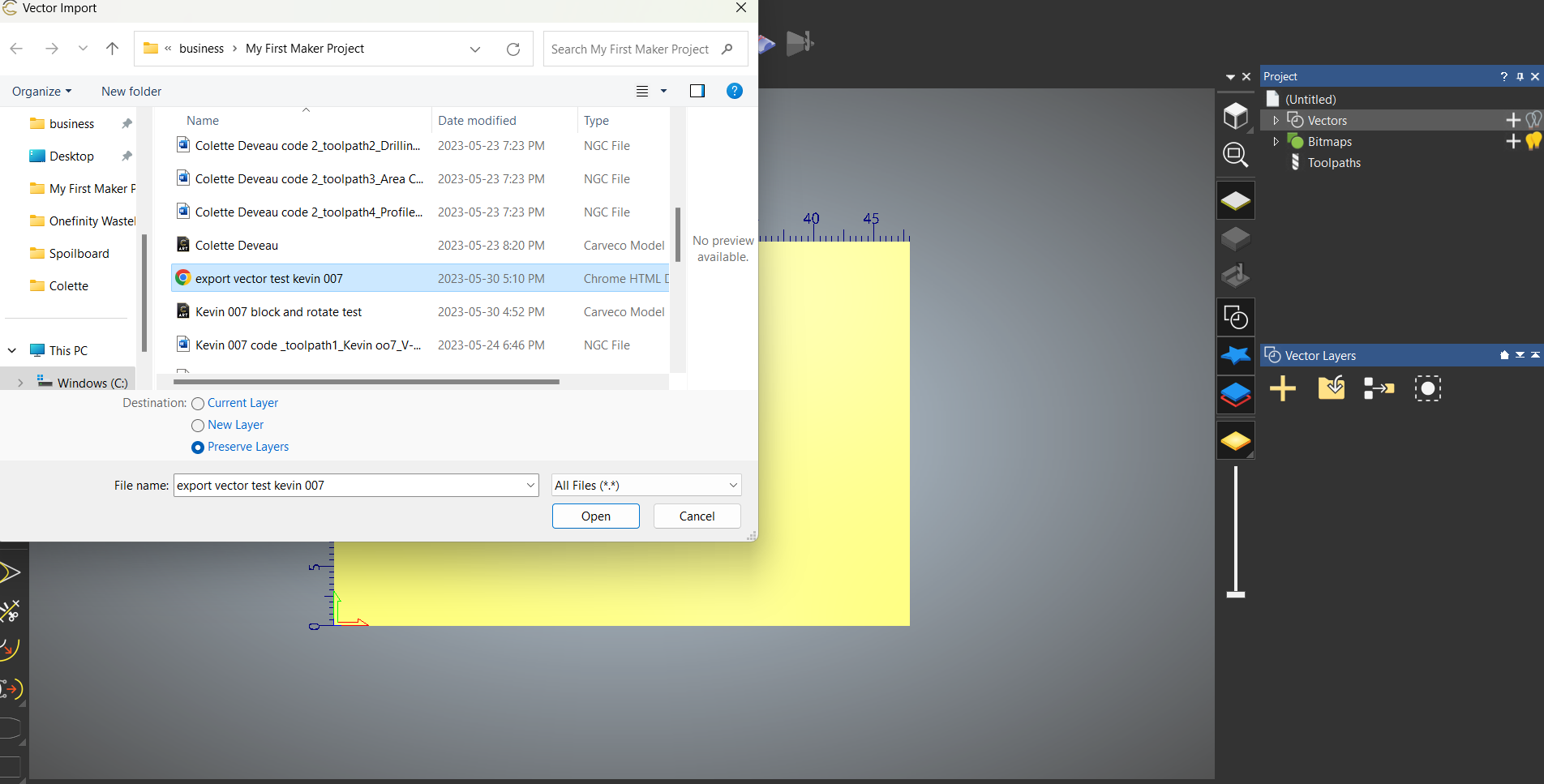
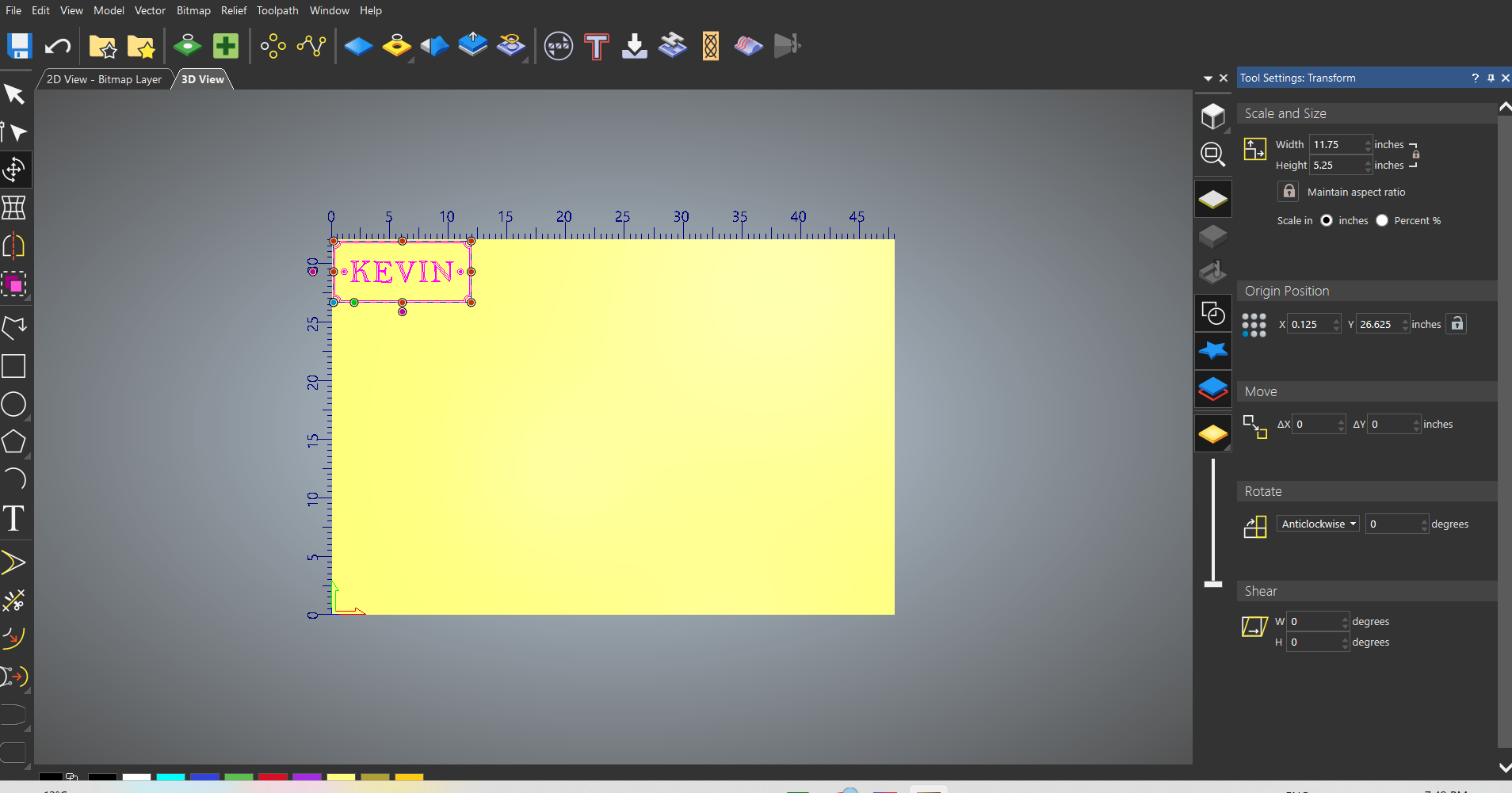
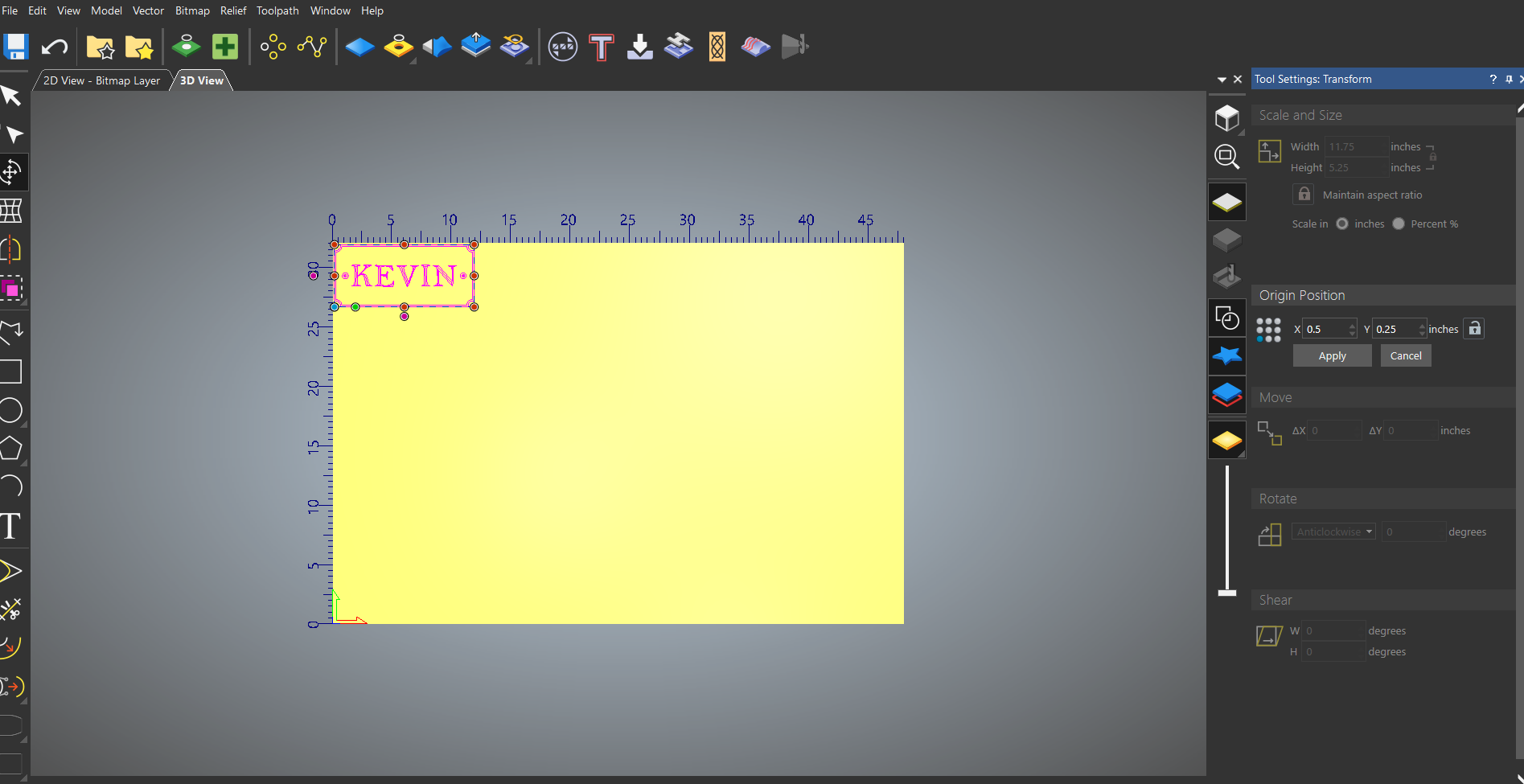
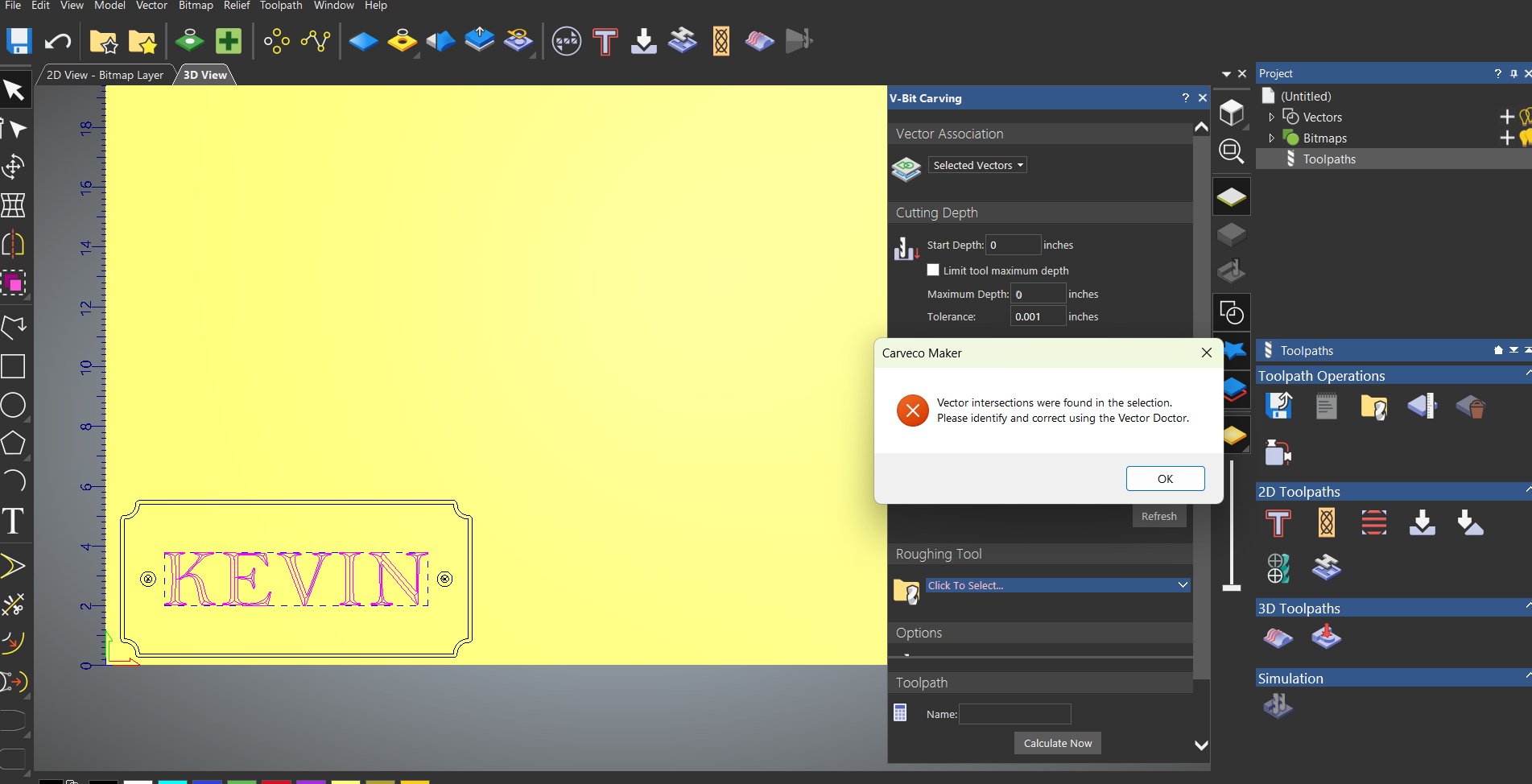
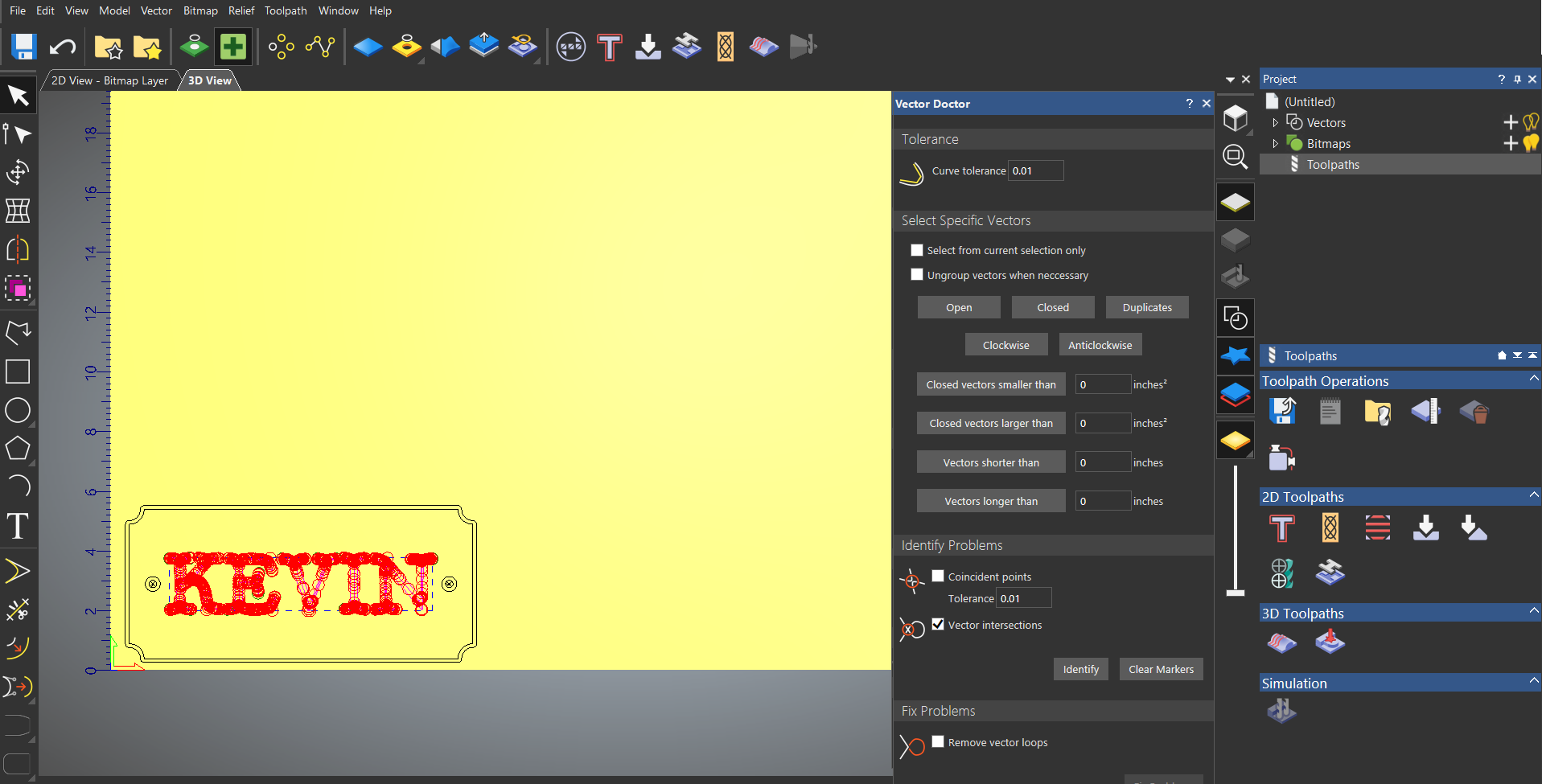
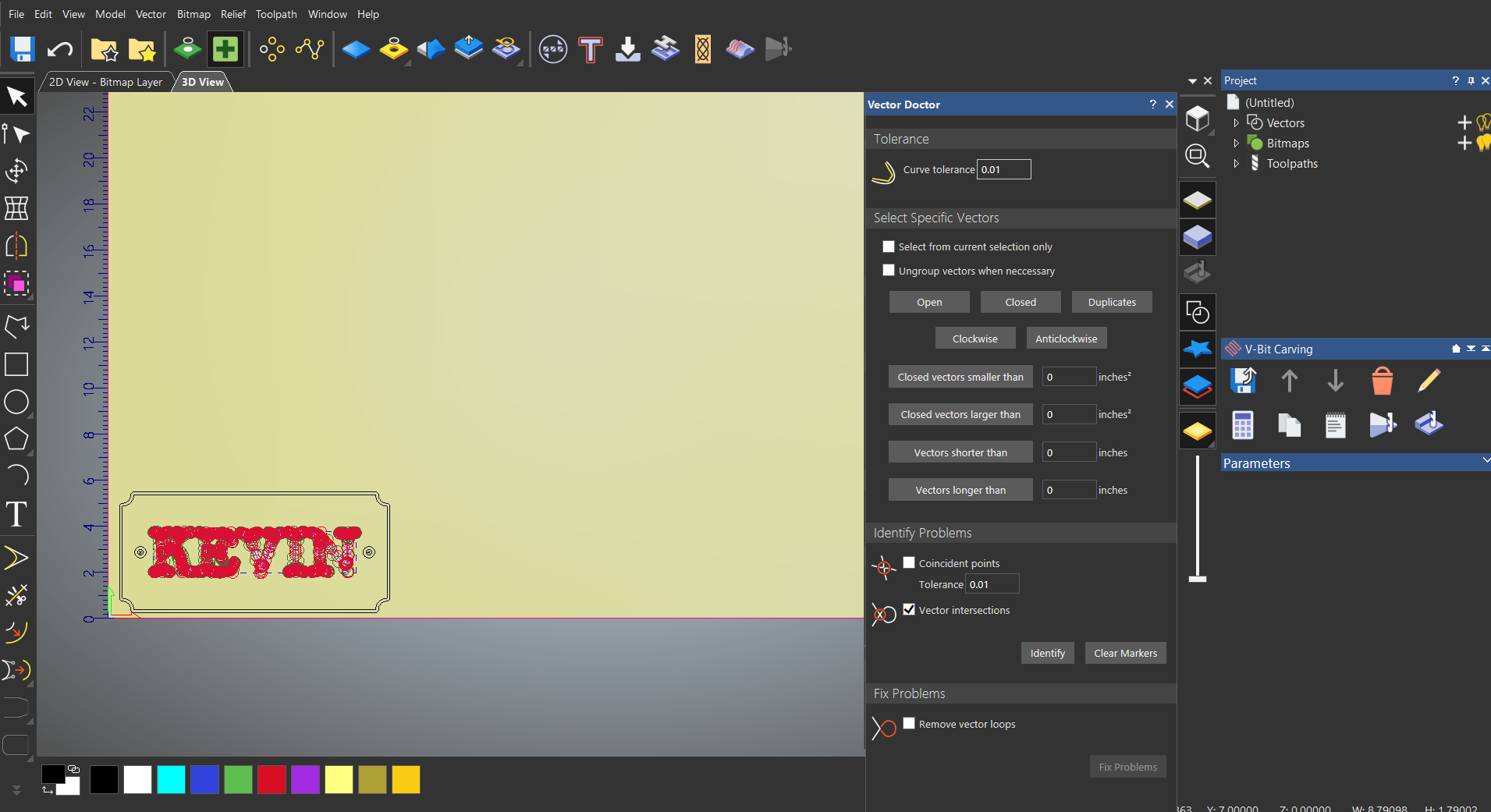
I watched the 2 videos you suggested. I had already learnt most of the content in the Part 1 and part 2 creating a plaque training videos so it didn't help in importing the already created tool paths from my already created plaque. The pics I'm going to show are of a plaque I've already created in carveco maker and to import to a bigger new model ,after getting many errors, I found out I had to export my already created plaque to a format that would allow me to import it to my new model. After doing all that and not being able to import my already saved tool paths for that already created plaque I decided to recreate the toolpaths but as the pics will show I ended up with this mess. My computer is a MSI and cnc is Onefinity Journeyman X50 with Onefinity supplied controller and screen. So I haven't gone any further due to my frustrations at this point and just exited the software without saving .P.S. and yes I tried Vector doctor and the remove vector loops was used but pics weren't sent.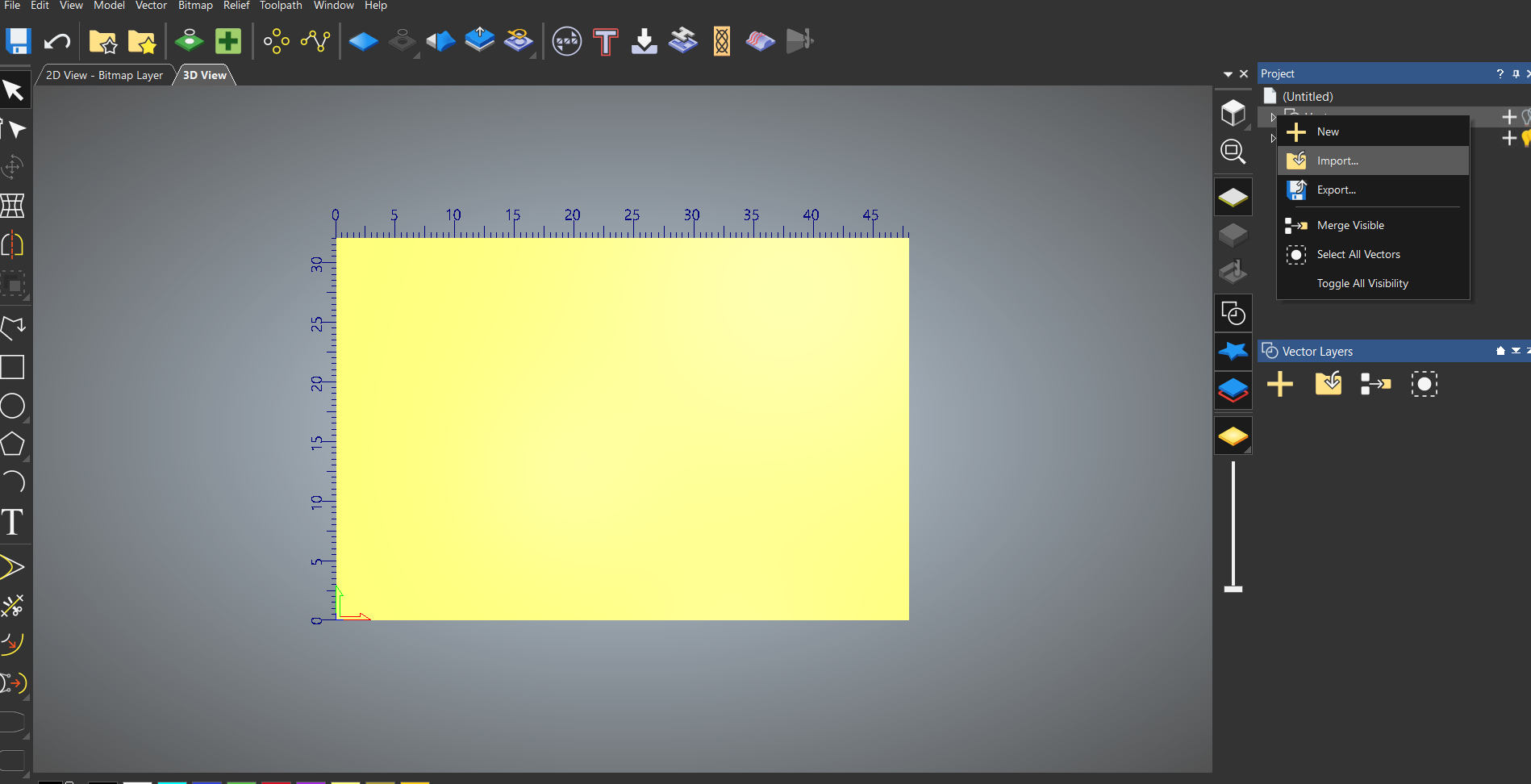
Hi Kevin Comeau,
Please share your Carveco Model file (.art) here by uploading it through the free WeTransfer service using its Get transfer link option, and then posting the generated link here as part of your reply. We can then take a look at your problematic vector artwork which is preventing you from calculating a V-Bit Carving toolpath.
Thanks again for your time and cooperation.
Please sign in to leave a comment.